How to Use Multiple Esims on iPhone for Travel and Hong Kong
8/29/2026
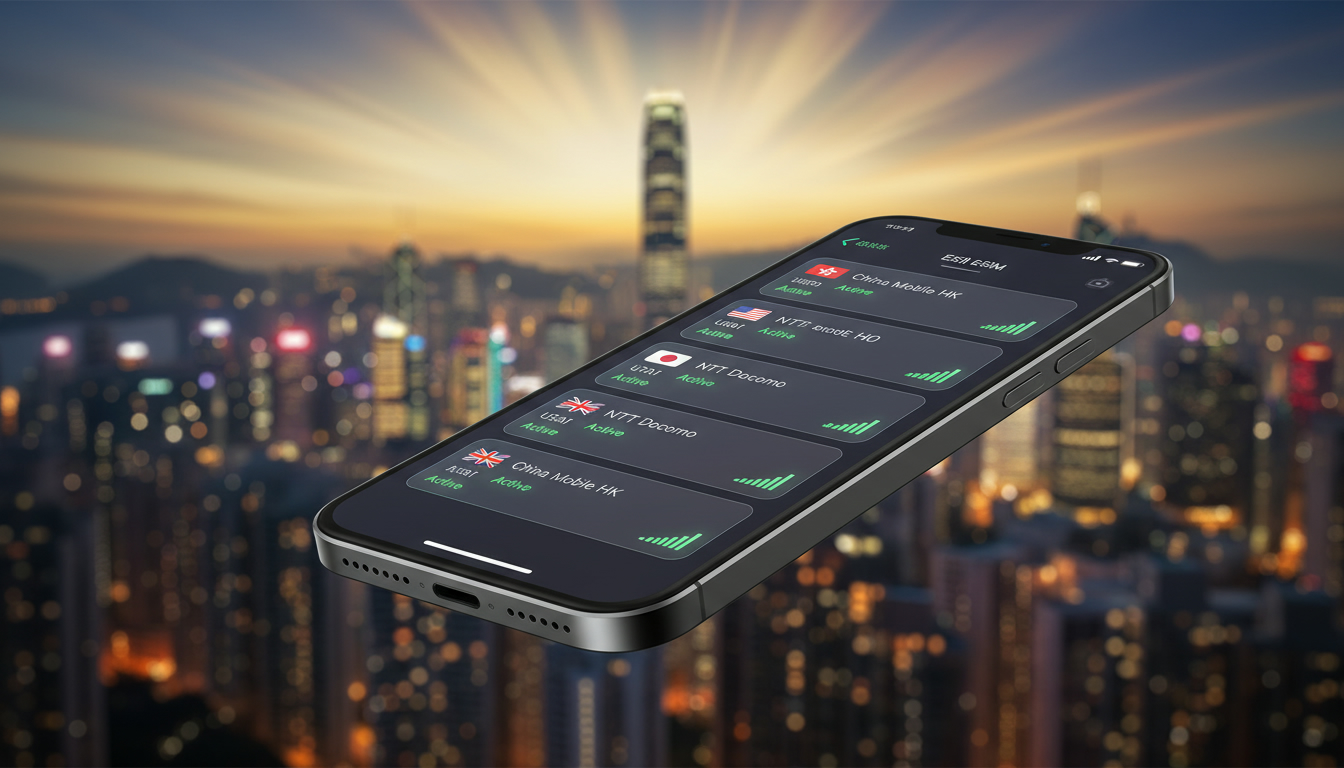
In short, what you'll discover in this article: Learn how to use multiple eSIMs on your iPhone to simplify managing phone numbers and data plans. We cover compatible iPhone models, setup steps, advanced management tips, and practical use cases for travelers and multitaskers.
1. Introduction: Why Manage Multiple eSIMs on iPhone?
Managing several eSIMs on an iPhone offers a modern solution for users juggling multiple phone numbers or data plans. For frequent travelers or professionals separating work and personal lines, this feature eliminates the hassle of swapping physical SIM cards or carrying multiple devices.
The ability to switch seamlessly between eSIMs enhances convenience and connectivity, especially in regions like Hong Kong where local data plans vary.
2. What Is an eSIM?
2.1 Definition and Differences With Physical SIM
An eSIM (embedded SIM) is a digital SIM card embedded inside your iPhone that allows you to activate a cellular plan without using a physical SIM card. Unlike traditional SIM cards, which require manual insertion and removal, eSIMs can be programmed remotely via QR codes or carrier apps.
2.2 Main Advantages (Flexibility, Multi-Carrier Use, Travel)
The key benefits of using multiple eSIMs include:
- Flexibility: Easily switch between carriers or plans without physically changing SIM cards.
- Multi-Carrier Access: Maintain different phone numbers for work, personal use, or international travel.
- Travel Convenience: Activate local data plans temporarily when abroad without roaming fees.
These advantages make the iPhone with multiple eSIMs a powerful tool for staying connected worldwide.
3. iPhone Compatibility and iOS Requirements
3.1 Compatible iPhone Models for Multiple eSIMs
Starting with the iPhone 13 series, Apple introduced support for using two active eSIMs simultaneously without needing a physical SIM card. Models that support multiple eSIMs include:
- iPhone 13, 13 mini, 13 Pro, 13 Pro Max
- iPhone 14, 14 Plus, 14 Pro, 14 Pro Max
- Newer models continuing this capability
Older models like the iPhone 11 and 12 can store multiple eSIM profiles but only activate one at a time alongside a physical SIM.
3.2 Required iOS Versions and Settings to Check
To manage several eSIMs on iPhone effectively:
- Ensure your device runs iOS 16 or later for full multi-eSIM support.
- Check cellular settings to confirm eSIM profiles are recognized.
- Update carrier settings as needed via Settings > General > About.
4. Can You Have Multiple eSIMs on an iPhone?
4.1 Maximum Number of eSIMs and Stored Profiles
Your iPhone can store up to eight different eSIM profiles, but only two can be active simultaneously on compatible models like the iPhone 14 Pro Max. This means you can switch between stored profiles without deleting them but use only two lines at once.
4.2 Difference Between Stored and Active Profiles
- Stored Profiles: Saved on your device but inactive; you can activate them anytime.
- Active Profiles: Currently in use for calls, texts, or data.
This distinction allows users to prepare multiple plans ahead of time and toggle as needed.
5. How to Add and Activate Multiple eSIMs (Step-by-Step Guide)
5.1 Preparation: QR Code, Carrier Apps, Internet Connection
Before adding an eSIM:
- Obtain the QR code or activation details from your carrier.
- Download any required carrier app if manual setup is needed.
- Ensure your iPhone has an active internet connection (Wi-Fi or cellular).
5.2 Step 1: Add an eSIM Plan (QR / Manual Code / Carrier App)
To add a new eSIM:
- Go to Settings > Cellular > Add Cellular Plan.
- Scan the QR code provided by your carrier or enter details manually.
- Follow on-screen prompts to complete activation.
5.3 Step 3: Name and Configure Each Line (Customization, Cellular Data)
After adding:
- Assign a label (e.g., “Work,” “Travel”) to each line for easy identification.
- Choose which line will be used for cellular data under Settings > Cellular > Cellular Data.
- Set default lines for voice calls and messages.
5.4 Step 4: Switch Between Lines and Set Defaults
You can switch active lines anytime by:
- Going to Settings > Cellular.
- Selecting the line you want to activate.
- Setting it as default for calls or data if desired.
This flexibility is ideal for managing personal and business numbers or switching to local plans while traveling.
6. Advanced eSIM Management
6.1 Assign Cellular Data, Default Line, iMessage/FaceTime
Customize your experience by:
- Selecting which line handles cellular data usage.
- Setting the default line for voice calls.
- Linking specific lines with iMessage and FaceTime accounts under Settings > Messages and FaceTime.
6.2 Keep, Delete, or Reactivate an eSIM Profile
You can manage stored profiles by:
- Keeping unused profiles saved for future use.
- Deleting profiles you no longer need via Settings > Cellular.
- Reactivating deleted profiles by scanning QR codes again or contacting carriers.
This management helps optimize storage and usage based on your needs.
7. Practical Use Cases and Scenarios
7.1 Travelers: Activate a Temporary Local eSIM
Travelers in Hong Kong can benefit from activating a local data plan temporarily through an eSIM without removing their home SIM card. This avoids roaming fees while maintaining access to personal numbers.
For detailed options on Hong Kong plans, check out the best Hong Kong eSIM plans.
7.2 Separating Work/Personal Lines and Managing Calls/SMS
Using multiple eSIMs lets users separate professional calls from personal ones on the same device seamlessly—ideal for business travelers who want clear distinctions without carrying two phones.
8. Common Issues and Troubleshooting
8.1 QR Code Not Recognized / Activation Errors
If your iPhone doesn’t recognize the QR code:
- Verify the code is valid and not expired.
- Restart your device before scanning again.
- Contact your carrier if problems persist.
8.2 Line Conflicts and Roaming Problems
Conflicts may arise if two active lines try to use roaming simultaneously or if settings overlap:
- Check roaming settings per line under cellular options.
- Disable roaming on one line if unnecessary.
- Ensure carrier compatibility with multi-eSIM usage.
9. Conclusion and Recommendations
Using multiple eSIMs on an iPhone simplifies managing several phone numbers and data plans—especially beneficial for travelers or those balancing work and personal communications. Newer iPhones support up to two active eSIMs simultaneously with up to eight stored profiles ready to switch anytime.
For travelers heading to Hong Kong or similar destinations, activating local plans via multiple eSIMs offers cost-effective connectivity without swapping physical SIM cards. To explore detailed options tailored for Hong Kong, visit how to get an eSIM in Hong Kong.
Embrace this technology today to streamline your mobile experience effortlessly!
For more insights about managing several eSIMs on your device while traveling in Asia’s tech hubs like Hong Kong, consider checking out this comprehensive guide that covers top providers and activation tips tailored for visitors and residents alike.
FAQ
Which iPhone models support multiple active eSIMs?
Starting with the iPhone 13 series, Apple supports two active eSIMs simultaneously. Models like iPhone 13, 14, and newer can use multiple eSIMs without a physical SIM, while older models store multiple profiles but activate only one at a time.
How many eSIM profiles can an iPhone store and use?
An iPhone can store up to eight eSIM profiles, but only two can be active at once on compatible models. This allows users to switch between stored plans without deleting them, using two lines simultaneously for calls and data.
What steps are needed to add and activate an eSIM on iPhone?
To add an eSIM, obtain a carrier QR code or activation details, then go to Settings > Cellular > Add Cellular Plan. Scan the QR code or enter details manually, follow prompts, and assign labels to each line for easy management.
Can I use multiple eSIMs to separate work and personal phone lines?
Yes, multiple eSIMs let you keep distinct phone numbers on one device. You can assign labels like 'Work' and 'Personal,' set default lines for calls and messages, and switch between them seamlessly without carrying multiple phones.
What should I do if my iPhone won’t recognize the eSIM QR code?
If the QR code isn’t recognized, verify it’s valid and not expired. Restart your iPhone and try scanning again. If issues persist, contact your carrier for support or request a new activation code.

Emily Wong
Emily is a Hong Kong-based travel writer. At Hong Kong eSIM she compares CSL, 3 and SmarTone plans so visitors stay connected from the airport to Victoria Harbour.